Change Requests Tab
Client Change Requests provide a controlled way for Technicians, Installers, Users, or Dealers/Bureaus to propose changes such as setting up client zones, adding users, or updating schedules without granting them full edit permissions.
Instead of applying changes immediately, these requests act as a review-and-approve workflow:
- Submitters can create new zones, add and modify users, and modify client schedules.
- Reviewers must approve the request before any changes are applied.
This ensures that changes are captured while still maintaining oversight and control.
Creating and approving Client Change Requests is an ICA exclusive feature.
Creating a Change Request
Client Change Requests can be created by clicking the create request button in the Client Header Bar. Alternatively, it can be created using the insert button from the new Change Requests side menu.

Request Form
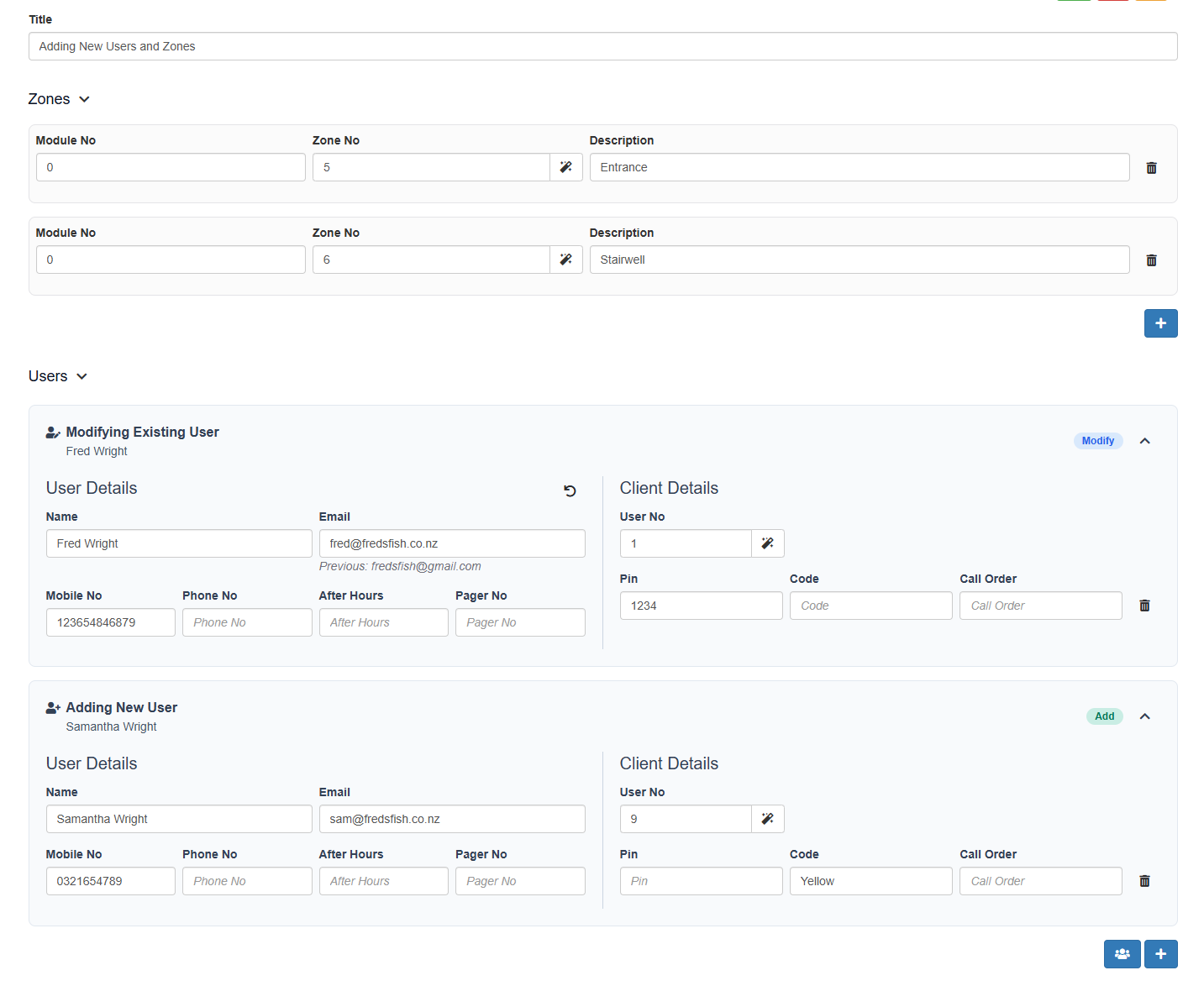
From the Client Change Request form you may add zones, and/or modify and add users by populating the available fields.
In the following example two new zones are added to the client alongside two user changes: one that modifies the email of an existing user, and one that adds a new user.

The client schedule can also be changed and if approved will overwrite the existing schedule. Additional comments can be submitted to support the application.
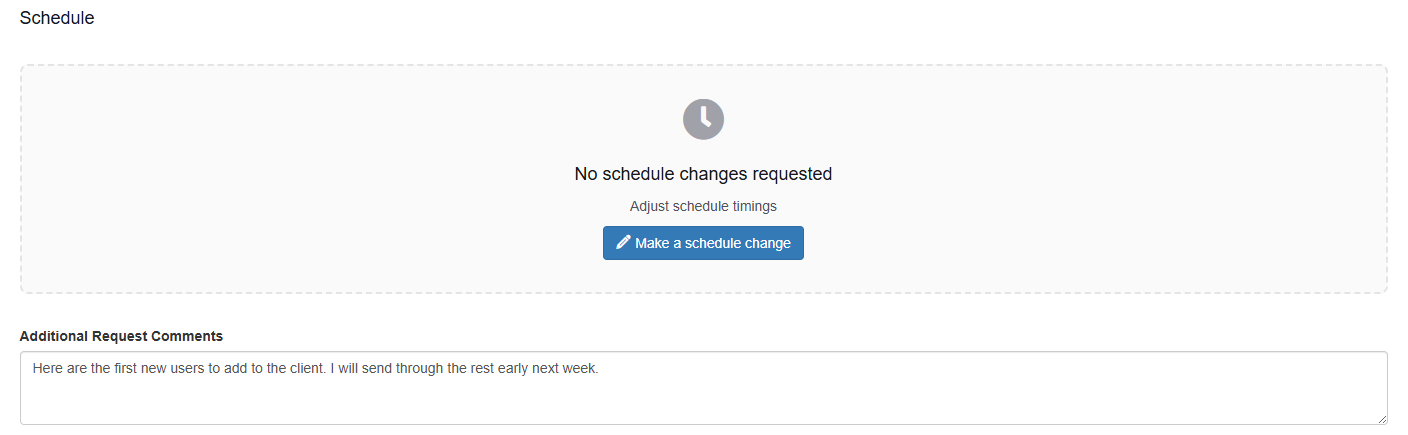
When you have completed the changes you are requesting, you may save the form to send the request.
Reviewing a Change Request
Request List
Change requests can be reviewed from the Change Requests sidebar menu in either the client or global contexts. From here you will see a list of submitted change requests. The filters may be used to view already completed change requests, and switch between seeing your own requests and seeing others (with view others permission right)
Clicking a request will open the review page.

Request Review Page
From the Change Request review the submitted zones, users and schedule changes can be viewed and considered. A reviewer may approve or reject the proposed changes. If the requested changes are approved, an automatic attempt to apply these changes will be performed.
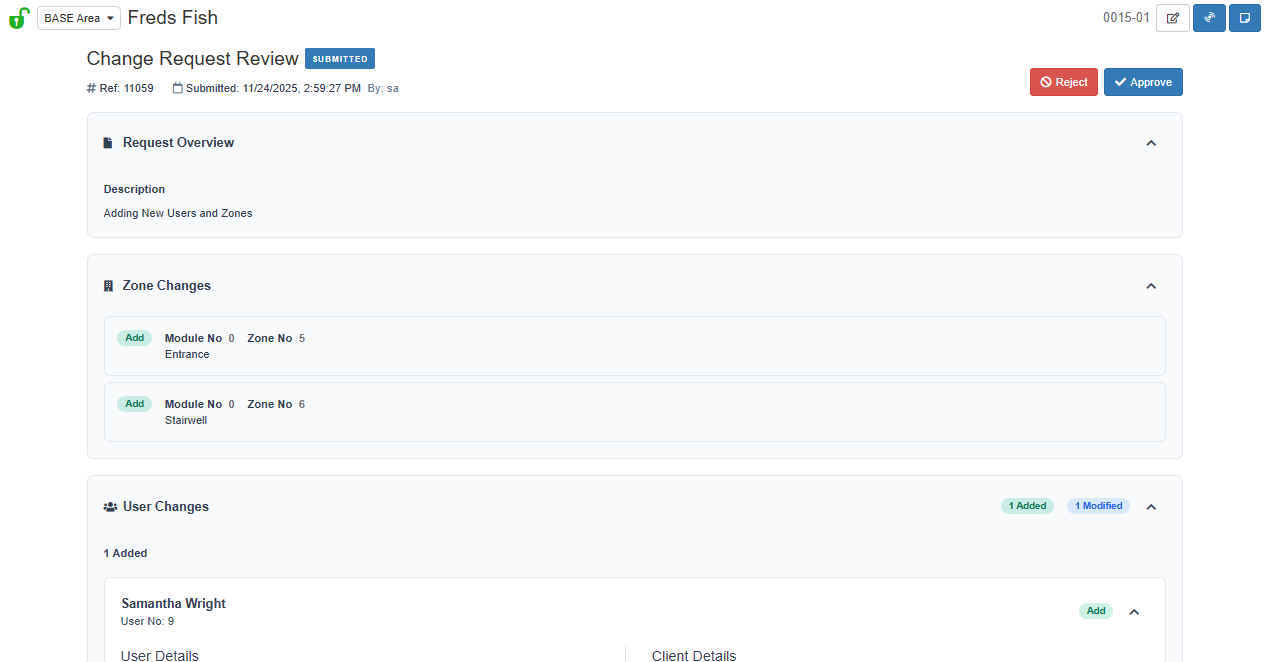
User Changes
The User Changes card will display the changes to be made to add new users and modify existing ones. In the example below, one new user Samantha Wright is being added to the client. The global user details and client user details for this user are shown.
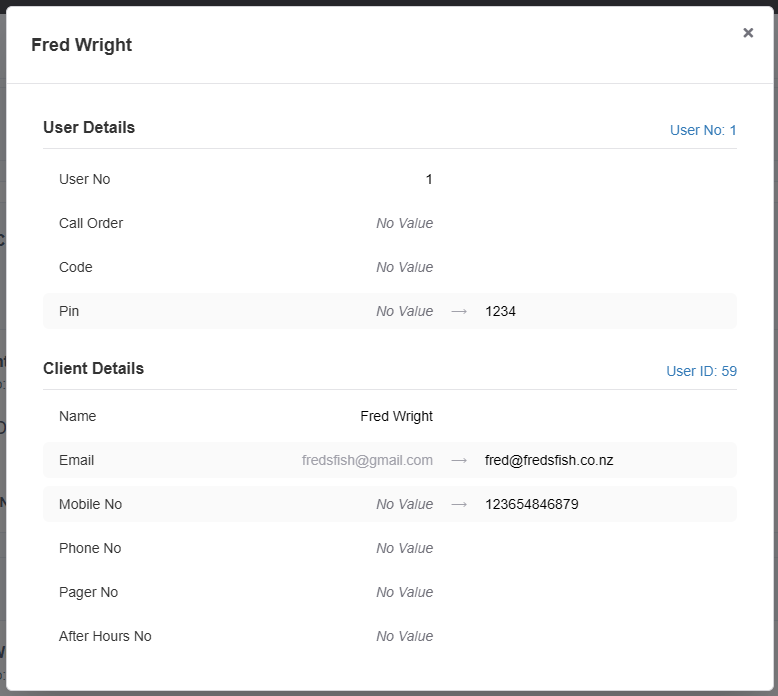
Additionally, the user Fred Wright is being modified. The email, mobile number and pin number are being updated. All other details for this existing client will remain unchanged.
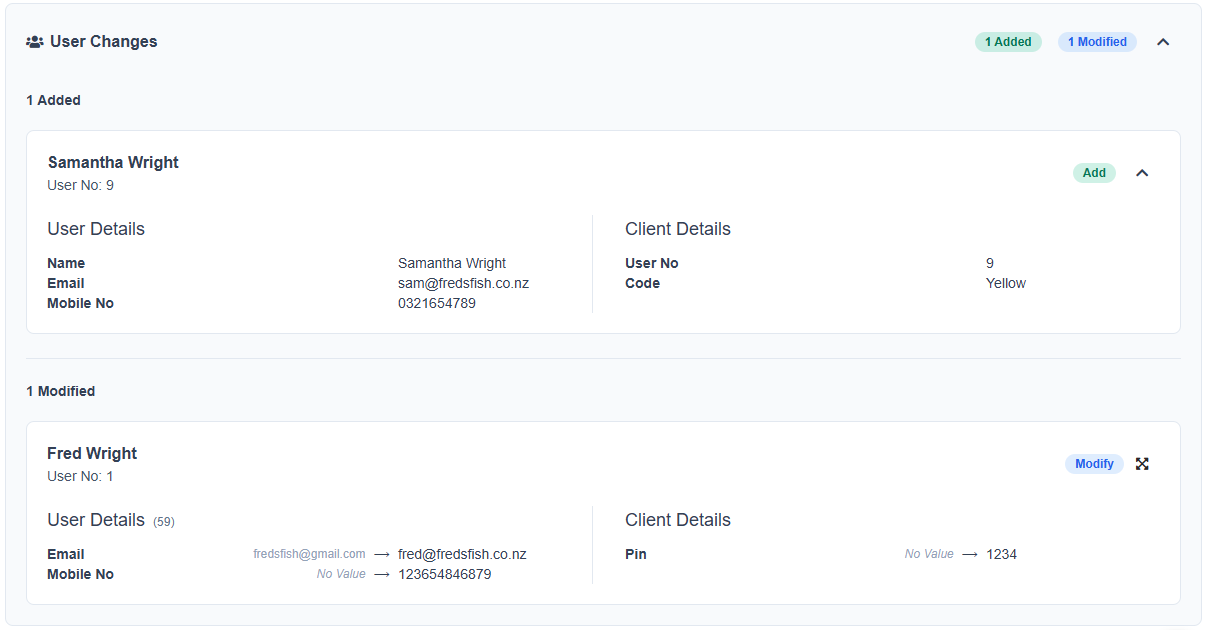
User Modification Breakdown Modal

The existing client user or global user pages can be viewed by navigating with the user No or user ID links.
Managing Conflicts

A conflict can be identified by the orange, triangular exclamation symbol. Clicking this symbol will also open the modification breakdown modal to view the conflict.

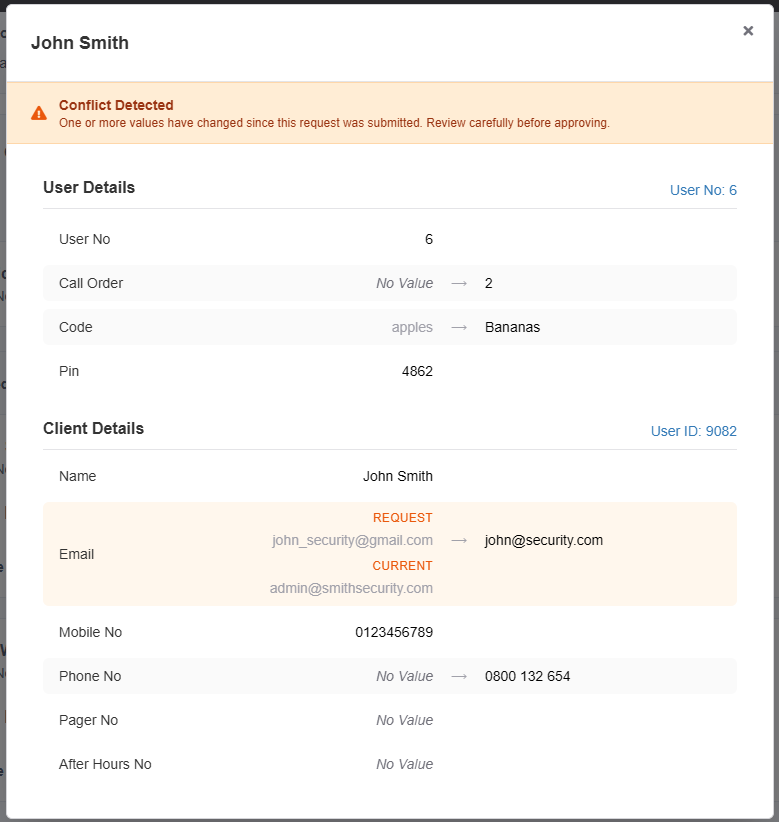
In the Modification Breakdown we can see that the requested change was from john_security@gmail.com; however, the email was updated to admin@smithsecurity before the request was processed. This conflict resolution is indicating that the new value will be changed to john@security.com.
User No Conflicts
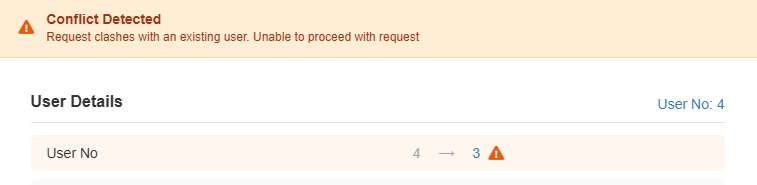
Some conflicts cannot be resolved in the Change Request approval process. User Nos are required to be unique within a client, if a modification or user insert is a conflict with an existing user number the request will not be able to be applied.
Reviewer Options

Opens a modal to approve the change request and attempt to apply the changes to the client.

Opens a modal to reject the request without applying the changes.

The submitter or reviewer of the request can delete the request if they no longer wish to make the changes detailed.
Completing The Change Request
When approving or rejecting a change request the reviewer may optionally provide a comment to be recorded on the request.
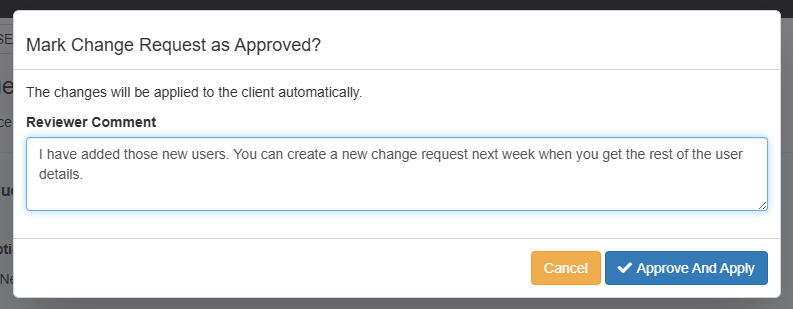
This comment is added to the top of the change request review.

If approved, the changes will be applied automatically. You should be able to view new users, zones and schedules as if you had added them manually.
Handling Unmanaged Conflicts
If an attempt to apply the changes is unsuccessful an alert will be shown. This is commonly caused by attempting to add zones or users that conflict with existing records. Requests that contain conflicts cannot be approved and applied, they must be rejected by the reviewer. After reviewing the error you may chose to manually apply the changes or ask the submitter to make a new request with the corrected information.