Security Settings
General Security Settings
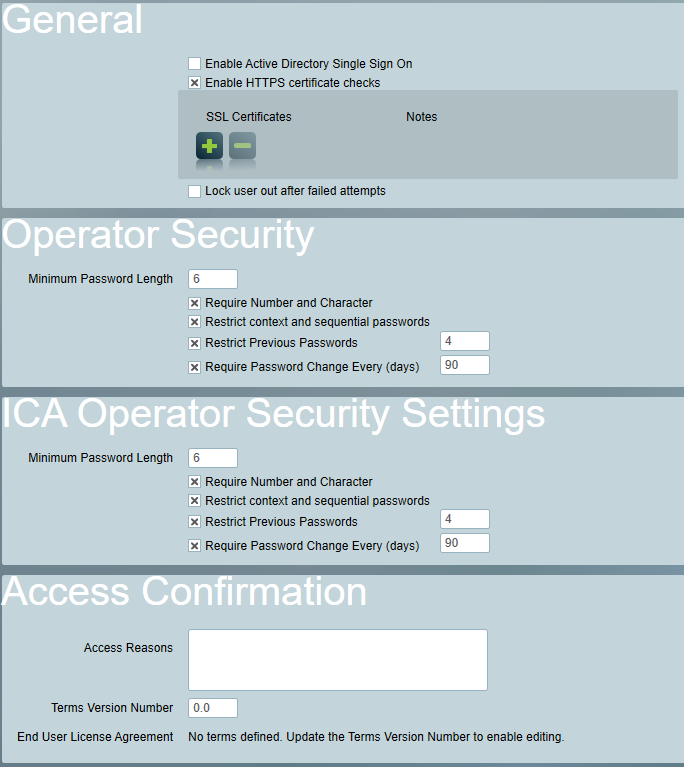
Active Directory Sign On
Disables standard Patriot operator logins, and allows operators to log in using their Active Directory domain credentials. See Single Sign On for more information
Enable HTTPS certificate checks
When enabled (default), all Patriot components will validate HTTPS certificates for secure connections using the Windows operating system's trusted root certificate store. Additionally, any certificate thumbprints added to the list below will be treated as trusted root certificate authorities.
If disabled, Patriot will not validate HTTPS certificates when making secure connections. It is strongly recommended to leave this option enabled at all times. If certificate errors are preventing connections, this option can be disabled as a temporary measure until the underlying certificate problems can be resolved.
Lock user out after failed attempts
If this option is enabled, Patriot users will be locked out if they enter the wrong username or password too many times within a period. The user will be reactivated automatically after a delay. Operator accounts can also be manually reactivated or reset in the Patriot Client via the operator maintenance menu. This option is not available when the ULC module is registered.
Login Attempts
The number of failed login attends required to trigger a lockout.
Within Time
The amount of time failed login attempts are tracked.
Lockout Time
How long the operator is disabled for, when lockout is triggered.
Password Security
Password security rules can be set to enforce secure passwords. These settings can be enabled independently for both Operators and ICA users
Minimum Password Length
Enforces the minimum length allowed for passwords
Require Number and Character
If enabled, all passwords must contain both letters and digits.
Restrict context and sequential passwords
If enabled, passwords cannot include easily-guessed information like the operator/user name or sequences like 12345 or aaaaa.
Restrict Previous Passwords
If enabled, previously used passwords cannot be re-used. The number of previous passwords to restrict must be specified.
Require Password Change
If enabled, passwords must be changed periodically. The Restrict Previous Passwords setting must be enabled to use this setting. People who recently changed their password before this setting was enabled may be forced to change their password again on their next login.
The Change Password security right does not apply restrictions when changing expired passwords.
Access Confirmation
The settings here can be required per security group. When enabled for a security group, an operator will be required to complete the requirements before completing their log in and gaining access to both ICA and the Patriot client.
Access Reasons
This is a system wide list of access reasons for logging into the ICA web portal and Patriot Client. Entries are separated by each new line.
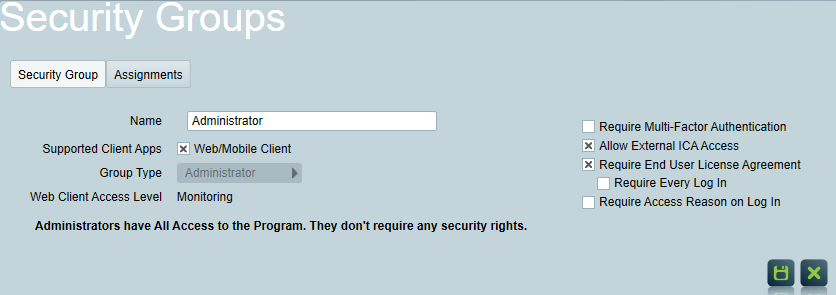
Once the list has been populated with options, in the Security Groups menu, choose the Security Group that is required to select an access reason. Then, click the Require Access Reason on Log In checkbox.
End User License Agreement (EULA)
When EULA configuration is enabled, users must accept the latest terms before logging into ICA or the desktop application.
Enabling the EULA will impact third parties using the API. For those third parties requiring API access, it is advisable to establish their API users within a security group that does not have the EULA requirement.
Configure End User License Agreement
In the System Wide Settings, navigate to Security > Access Confirmation section, where you can configure the version number and contents of the terms. Markdown is supported for formatting the contents.
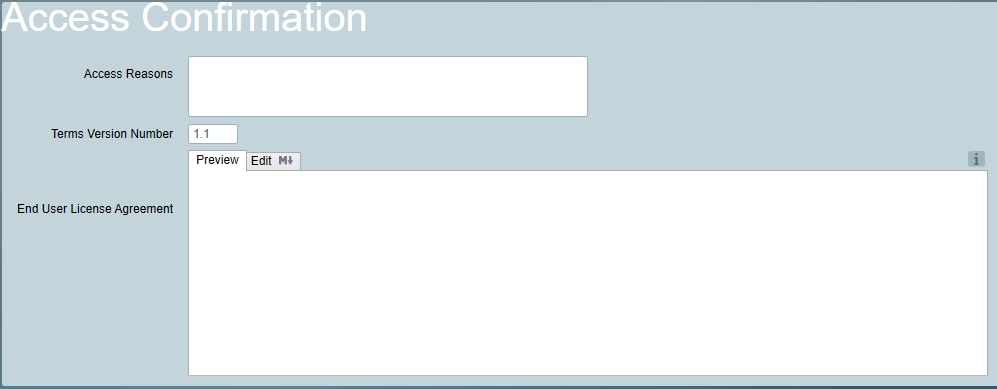
If the Terms version number is changed, all users with the Require End User License Agreement enabled must accept the new terms. Additionally, any version number changes must be higher than the previous version.
Enable End User License Agreement
Once the EULA has been configured, in the Security Groups menu, choose the Security Group that is required to accept the EULA. Then, click the Require End User License Agreement checkbox.
The ability to require agreement on every log in will be made available when this setting is enabled. Click the Require Every Log In checkbox to enable this setting.