Dahua DoLynk Setup
Patriot can receive alarms from DoLynk DVRs/NVRs and network cameras registered on the DoLynk platform, providing seamless support for video monitoring and alarm reporting.
Prerequisites
- This feature requires the Dahua DoLynk module added to your license.
- Sign up for and configure your DoLynk Care account
- Each workstation must be configured using the Workstation Setup.
DoLynk Client Files
- Latest version: 1.0.0
- Previous available version: N/A
Workstation Setup
Extract the DoLynkClientFiles.zip file that you downloaded in the DoLynk Client Files section above. There will be a 'DoLynk' folder within the extracted DoLynkClientFiles folder. Move that 'DoLynk' folder into the Camera Viewer Client installation folder of each workstation that will view the DoLynk CCTV.
This folder is normally C:\Program Files (x86)\Patriot Systems\Patriot Version 6 Client\CameraViewer\x64\
DoLynk Cloud Setup
Register for ARC account
- Register for a DoLynk ARC account. DoLynk must approve the account before you may continue to the next steps.
- Login to DoLynk Care with your ARC account credentials.
- Navigate to the Home page and create a new site for each client location.
- Review and accept requests to approve and add new camera devices to a site. These requests will be made by installers or end users.
Bind a device to an ARC account
A device can be bound to an ARC account by installers via DoLynk Care or end users via DMSS mobile app. The screenshots below show how to bind a device to an ARC account via DMSS app.
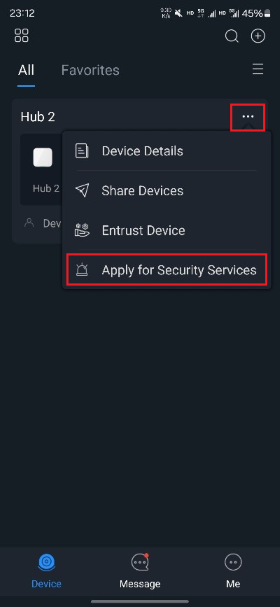
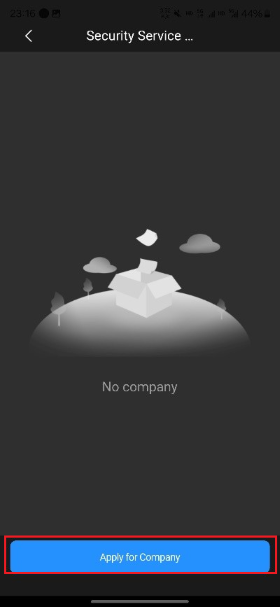
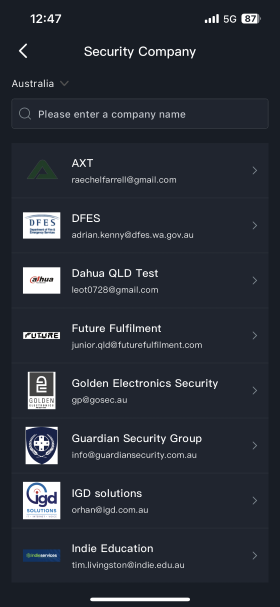
An ARC account needs to be approved by Dahua before it is available in the Security Company list. Once an ARC is selected for security service, a request will be sent to the ARC account. The ARC can then review and accept the request on DoLynk Care.
Security Service application via DoLynk Care is similar to that of DMSS.
For registration of DoLynk Care and DMSS, please enquire Dahua support.
Installers and ARC Users log in to DoLynk Care using the same portal. When creating or logging on to your account, ensure that you select the right role from the top right menu of the login portal.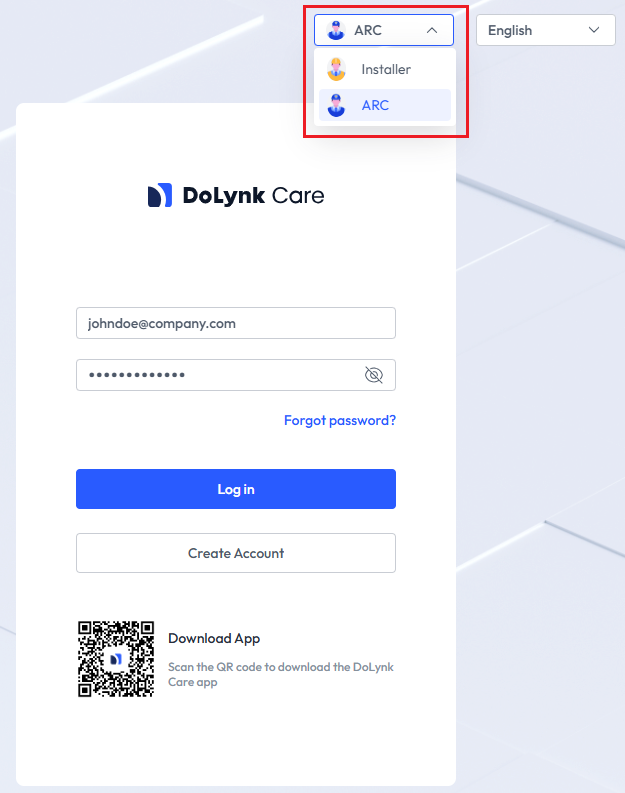
Device Setup
DVR system time and time zone must be set correctly, it is strongly recommended that the time server sync. feature (NTP) is enabled to ensure the system time is always correct. Incorrect system time may lead to Patriot not locating the correct event video clip during an alarm response.
Task Setup
System Menu Item > Tasks > Task Settings
Please read Task Settings for general information about task configuration.
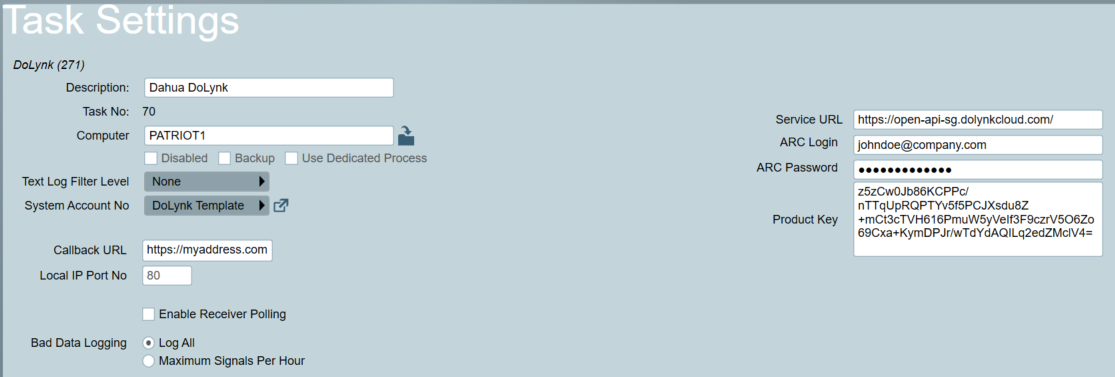
Service URL: Enter the service URL based on which region is closest to where the camera devices are located.
| Region | Service URL |
|---|---|
| Frankfurt Data Center | https://open-api-fk.dolynkcloud.com |
| Oregon Data Center | https://open-api-or.dolynkcloud.com |
| Singapore Data Center | https://open-api-sg.dolynkcloud.com |
ARC Login and ARC Password: Enter your DoLynk ARC login credentials.
Product Key: Keep default unless you are provided with a different key.
Callback URL: The address where alarms from DoLynk platform will be sent to.
Local IP Port No: Patriot Server's local port number that DoLynk task will listen on. Make sure that messages received on the Callback URL are forwarded to the server's Local IP Port No.
Enable Receiver Polling: This setting can be used as an extra protection against Dahua DoLynk task stopping to process alarms. When enabled, the Receiver Timeout setting can be entered. If no alarm is received within the Receiver Timeout setting, a Receiver Failure (65003) signal will be logged to the task's system account.
Patriot Client Setup
- Switch to the Zones Tab of a client.
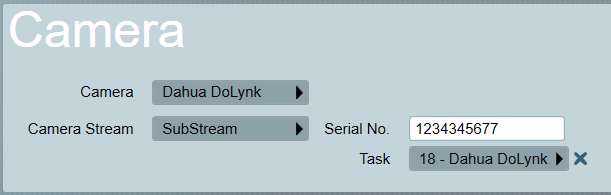
- Set the Camera Type option to Dahua DoLynk
- Choose the Task used for connecting to the DoLynk service.
- Choose the Camera Stream used for streaming all camera feeds.
- Enter the device Serial Number from the DoLynk Care Website by going to the Home page, then selecting a device listed on a site, and then selecting that device's SN number.
- Select or insert a Zone which will have a camera associated with it, set the zone no. to match the camera's channel no. and then check Camera Enabled.
- Test the cameras by switching the Cameras Tab. Press the Info. button to check that all camera channels have been setup as Patriot Zones.
For detached network cameras, enter the device serial number in the Serial No. field; any unused zone number may be used.
Client must be set on the same timezone with the device. Incorrect timezone setting may lead to Patriot not locating the correct event video clip during an alarm response. For setting up timezones, please refer to Timezones page.
Operation: Using the Cameras
You can view Cameras from different screens within Patriot
- The camera can be viewed directly by clicking on the camera icon next to the zone, in the zone list.
- Cameras can be viewed in the Maintain Client window under the Cameras Tab
Operational Functions
- When responding to an activation, the camera display will be automatically put into Event view. The first connection shows the alarm event (beginning Camera Pre-Recording Time before the alarm) for the activated zone. The alarm event footage can be replayed easily by clicking on the play from time button. The second connection shows the live feed from the activated zone.
- When using the camera controls in anything other than single view (i.e. quad, nine etc), the camera controls on the left hand tool bar apply to the selected connection. The selected connection has a green border around it. You can change the selected connection by clicking on another connection. The camera control buttons will only be enabled if a camera (from the camera list) has been selected.
- A list of installed camera numbers can be requested from the site by clicking on the info button, from in the Clients Camera tab.