Eview Personal Alarm Module Setup
Eview's range of personal alarm (lone worker) devices can be monitored in Patriot when the Eview Personal Alarm module is added to your registration. Patriot can receive alarm/status events, and provides tracking functionality via the mobile client mapping interface.
These devices are sold under several brands. In Australia and New Zealand they are most commonly seen as SoloSafe, available in pendant and watch form. Both are supported by this task.
Prerequisites
- The Eview Personal Alarm module registered
- Secure LAN with internet access and correctly configured firewall
- Supported Eview devices: EV-07B family, EV-04, EV-05, EV-06
- Eview devices must be configured to report events to Patriot via GPRS data connection, with a valid SIM and the correct APN
- Eview devices must be configured with the public IP address of your Patriot server and the port number of the task
The older EV-07S range, branded GoTop, uses a different protocol and is supported by the separate GoTop task.
Message encryption is not supported. Eview devices must be left with encryption turned off, as Patriot will reject encrypted messages.
Voice calls from an Eview device are handled by your phone system, not by this task.
Setup the Eview Personal Alarm Task
System Menu Item > Tasks > Task Settings
Please read Task Settings for general information about adding tasks.
 Add a new task to the list in the Task Settings window. Double click on Eview Personal Alarm in the drop down list in the details area of the window.
 Click the next button to continue. The Eview Personal Alarm task settings form will appear.
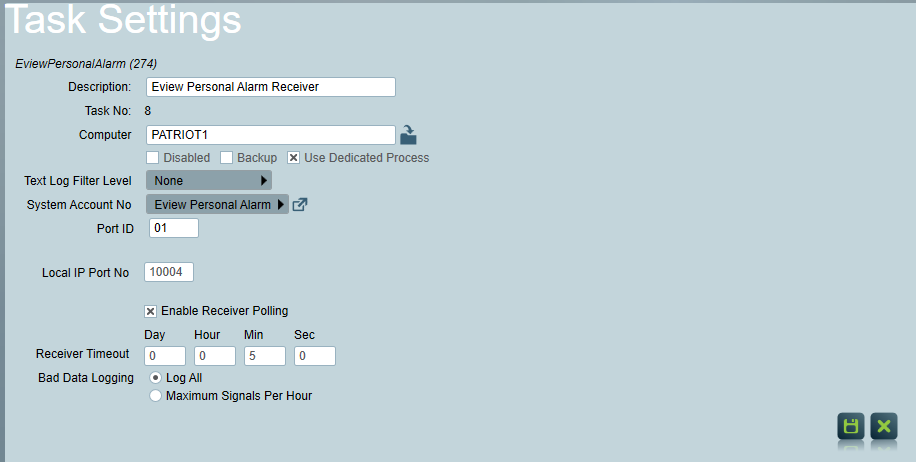
Eview Personal Alarm Task Settings
Enter a Description of the task, e.g. Eview Personal Alarm Lone Worker Device Receiver
The Task No. will default to the next free task number.
Select the Computer name of the machine that this task is to be run on. This will default to the computer you are currently on. A copy of the Patriot Task Service must be installed and running on the chosen machine.
Enter a System Account No. The system account number is used to log error and system generated signals against. This will default to EVIW000101 the Eview Personal Alarm Event Type template (see Patriot Client Setup). If this account does not already exist you will need to set it up as a template. A copy is available from Receivers & Format Templates. Like all task types, it is recommended that you create a new Patriot client for monitoring receiver alarms and set it here.
Enter the 2 digit Port ID that signals received by this task will be logged against.
Text log Filter Level can be used for task troubleshooting purposes. It should be left at the default None.
Local IP Port No should be set to a free port on the Patriot Server Machine. This port must be configured to accept connections from remote Eview devices so it must be routed correctly through your external network firewall and local Windows server firewall.
Receiver Timeout If no Eview signals are received after this length of time, an alarm will generate. To disable the timer, set the value to 0.
 Click Save to save the Eview Personal Alarm task settings
Patriot Client Setup
A Patriot Eview client is inserted in the normal way from the Add New Client dialog in the Clients menu. Any client ID can be chosen when setting up a Eview client, but the Eview device's IMEI serial number must be entered into the Device Ref No field on the client maintenance tab.
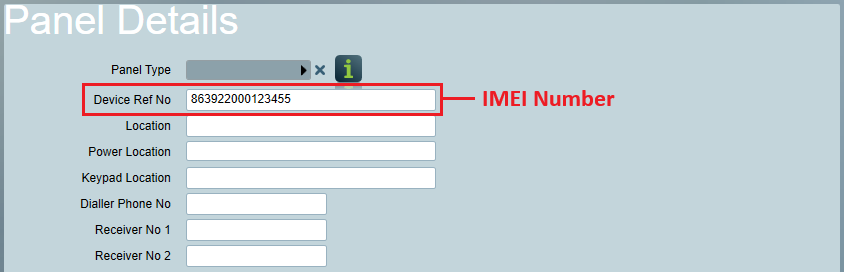
Patriot uses the IMEI number of the Eview device to match device signalling to a client file.
If you do not enter the IMEI number, or enter it incorrectly then signals received from the Eview device will not be logged.
Events
Clients for this task need to be set up with Eview Personal Alarm Event Type Template (EVIW-01) on the Event Types tab. A copy of this template, ready for Patriot import, is available from Receivers & Format Templates.
A single message from an Eview device can report more than one alarm. Patriot logs a separate signal for each one. The most commonly used event types are:
| Type No | Event |
|---|---|
| 1 | Battery Low Alert |
| 3 | Fall Down Alarm |
| 5 - 8 | GEO Fence 1 - 4 Alarm |
| 13 | SOS Alarm |
| 18 | SOS Ending |
| 27 - 30 | GEO Fence 1 - 4 Alarm In |
| 65093 | GPS Location |
If an Eview device reports an event that is not in the template, for example after a firmware update adds a new alarm, the signal is still logged but will appear as an unrecognised event type. Add it to the client's event types to give it a description and an action plan.
Polling
Eview devices send a heartbeat signal at a preset interval to keep their connection alive, which Patriot counts as an IP poll.
On the Tests tab, enable IP Polling, and select the Eview Personal Alarm task from the drop-down. It is recommended to set the interval slightly longer than the heartbeat interval configured on the device, so that a single late heartbeat does not generate an alert.
This will generate alerts if the client loses contact and does not send its required poll signals. Recent poll events can also be seen from this tab once configured.
Mapping
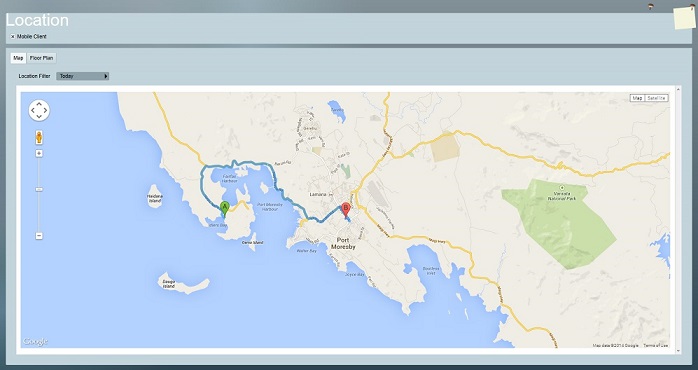
Eview devices report their GPS position along with their alarms, and separately as they move. Patriot logs each position as a GPS Location signal, and includes the position on alarm signals so that the operator can see where the alarm came from.
If your mobile device is capable and configured to send GPS tracking data, and you require live tracking functionality, then you should activate the "Mobile Client" check box on the Mapping tab. Please refer to Patriot's Mapping module documentation for more information. If you do not have the Mapping module registered, then you should refer to Lite Mapping.
Troubleshooting
The device connects but no signals are logged
Check that the IMEI number entered in the client's Device Ref No field matches the device exactly. Signals that cannot be matched to a client are logged against the task's system account.
The same alarms are logged repeatedly
Eview devices hold each event until Patriot acknowledges it, and re-send them when they reconnect. Repeated alarms usually mean that the device is not receiving Patriot's acknowledgements, so check that the connection is not being blocked in the outbound direction.
No signals are logged and the task text log shows encrypted messages
Message encryption is not supported. Turn encryption off in the device configuration.