Multi-Factor Authentication (MFA)
Multi-Factor Authentication provides additional account security by prompting users to enter an additional code when logging in to ICA.
The code is generated automatically by the user's authenticator device, typically an app on their smartphone, and changes frequently.
Logins to the Patriot smartphone app (Plink) support all ICA login features as of Patriot version 6.13.2.0, Plink version 13.2.2.
Enable Multi-Factor Authentication
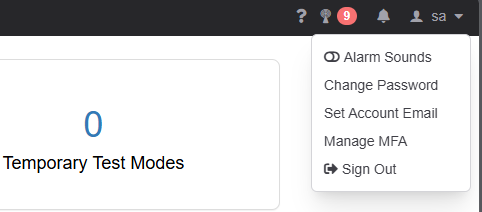
Log in to ICA and open the user's account menu in the top right.
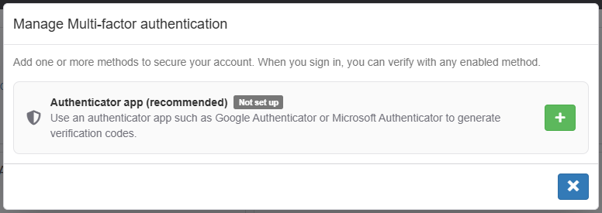
Select Manage MFA to open the Manage Multi-Factor Authentication modal, then click the + button next to Authenticator app.
Any authenticator app will do; below are links to the Google Authenticator app.


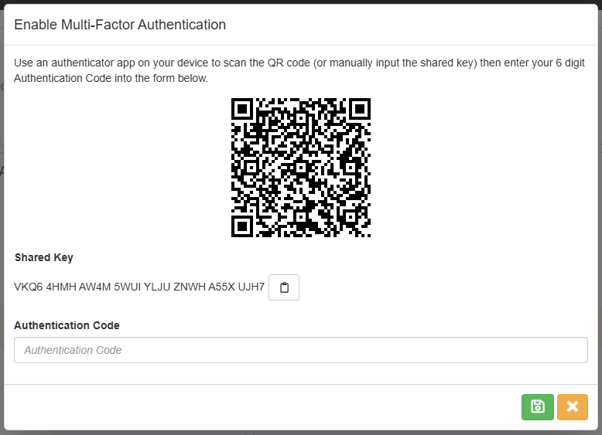
Use an authenticator app to scan the QR Code that is displayed.
Once the app has scanned the QR Code, it will provide the user with a code that changes every 30 seconds. Enter this code into the Authentication Code field and click Save.
That account is now registered for Multi-Factor Authentication.
Log in with Multi-Factor Authentication enabled
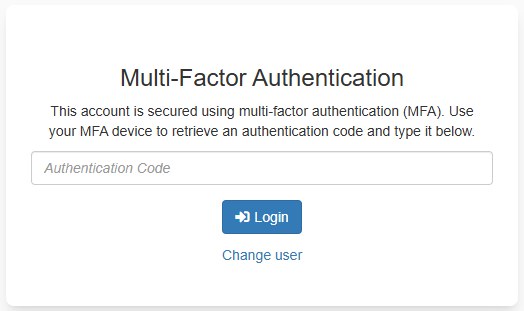
When a user logs in with Multi-Factor Authentication enabled, they will be prompted for an authentication code.
The user must enter the current code from their authenticator app.
Mandatory Multi-Factor Authentication
Mandatory Multi-Factor Authentication can be enabled for specific Security Groups. Any user or operator in the security group will be required to set up a Multi-Factor Authentication method when logging in to ICA.
Email Multi-Factor Authentication
The Email Task must be installed to use Email Multi-Factor Authentication.
Email Multi-Factor Authentication can be enabled for user or operator use. Allowing Email as a Multi-Factor Authentication Method must be enabled for specific Security Groups.
Any user or operator in the security group will have the option to use an Authenticator app or Email as a Multi-Factor Authentication method. During setup, a 6-digit code is sent to the account email that must be used to authenticate. The same happens at each login. If the user has not set up an account email, they will be prompted to do so first.
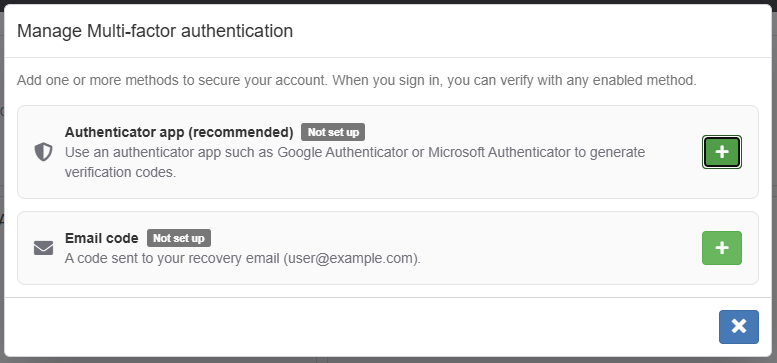
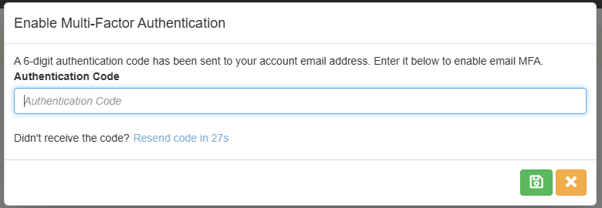
If an Authenticator app and Email code have both been set up, the user will be able to choose either authentication option on login.
Disable Multi-Factor Authentication
This option is not available if Mandatory Multi-Factor Authentication is enabled for the user.
Log in to ICA and open the user's account menu in the top right.
Select Manage MFA to open the Manage Multi-Factor Authentication modal, then click the - button next to the enabled method.
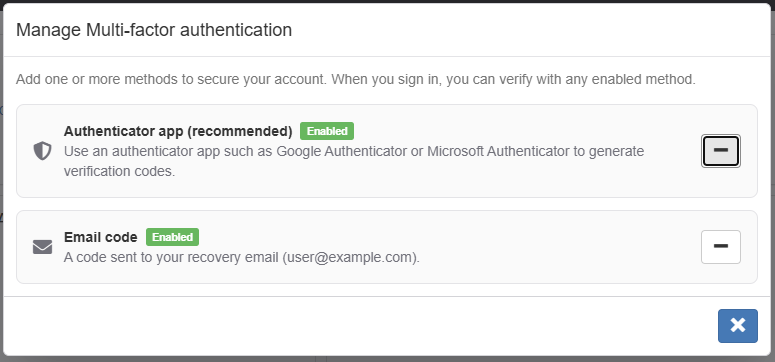
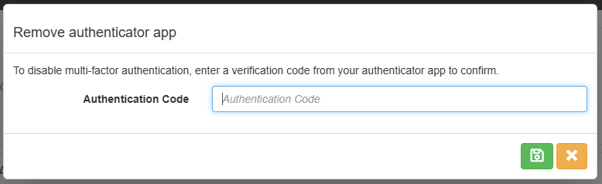
Enter the current code that appears in the user's Authenticator app, or the code sent to the user's email, and click Save.
Disable Multi-Factor Authentication as an operator
This requires an operator with privileges to edit operators.
Disabling Multi-Factor Authentication for operators
Log in to Patriot, then navigate to the operator menu.
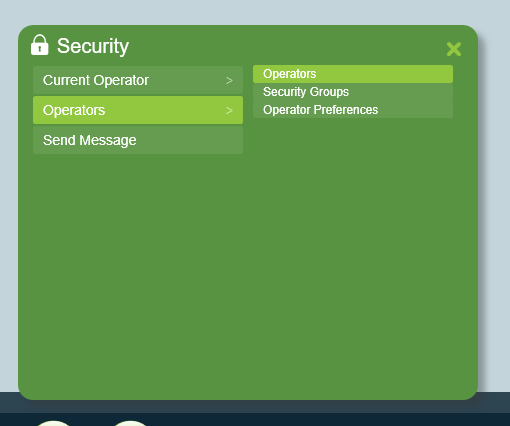
Select the operator that needs Multi-Factor Authentication turned off.
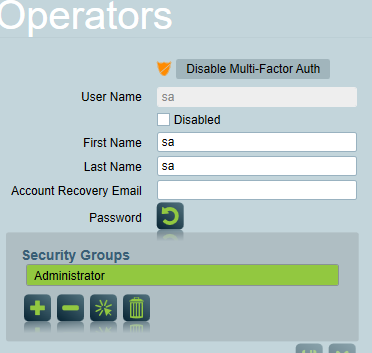
Select the Disable Multi-Factor Auth button.
If the operator has Mandatory Multi-Factor Authentication, they will be prompted to re-enable this on next login.
Disabling Multi-Factor Authentication for users
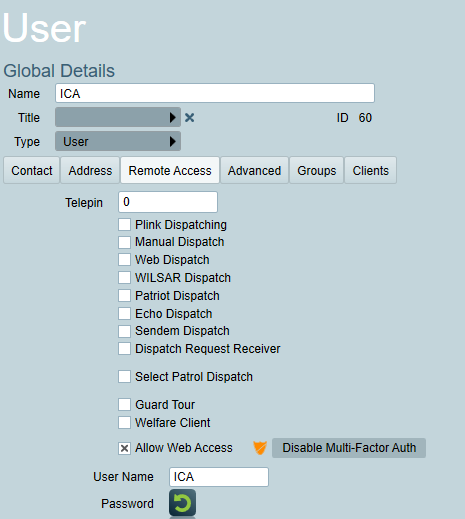
Open the user's User Details page in either the Users tab of a client or under User Maintenance.
In the Remote Access tab select the Disable Multi-Factor Auth button.
If the user has Mandatory Multi-Factor Authentication, they will be prompted to re-enable this on next login.