Nx Cloud
Nx Cloud is a relay/proxy service. The local Nx Witness server maintains a persistent outbound connection to Nx Cloud, so even if your server is behind a firewall or NAT with no port forwarding, it remains reachable from the internet through the relay.
Prerequisites
- A Patriot License with the Nx Cloud Module
- Nx Cloud Account
- FFmpeg installed (only required for streaming)
Supported Nx Witness Servers
- 6.1+
Setting up the Nx Witness Server
Full server configuration is beyond the scope of this document — refer to your Nx Witness server manual when configuring a new installation. This section covers only the settings relevant to Patriot monitoring.
Essential DVR details
- Nx Cloud credentials
- Site Id
- Camera Id
An Nx Cloud account can have multiple sites, and each site has a unique Site Id. Each site can have multiple cameras, and each camera has its own Camera Id. Patriot maps one Nx site to exactly one Patriot client:
-
Patriot Client A (SiteId:
86d67e4d-0000-xxxx-9e5c-7136f4051406)- Zone 1 (cameraId:
aaaa-bbbb-...) - Zone 2 (cameraId:
cccc-dddd-...)
- Zone 1 (cameraId:
-
Patriot Client B (SiteId:
99f12abc-1234-5678-abcd-000000000000)- Zone 1 (cameraId:
aaaa-bbbb-...)
- Zone 1 (cameraId:
-
Mapping a single Nx site to multiple Patriot clients is not currently supported — for example, mapping Area 1 and Area 2 to the same Site A using different cameras.
-
Access to Nx Cloud settings is subject to Nx Cloud account permissions. Configuring Nx Cloud account permissions is out of the scope of this documentation. Please refer to Nx Cloud documentation or contact the Nx Cloud administrator.
Patriot Task Setup
Create a new task and select the Nx Cloud task type, then enter the Nx Cloud credentials in the Username and Password fields.
If viewing camera stream is required, FFmpeg must be installed on Patriot Task server. For installing FFmpeg, please refer to FFmpeg Installation.
Patriot Client Setup
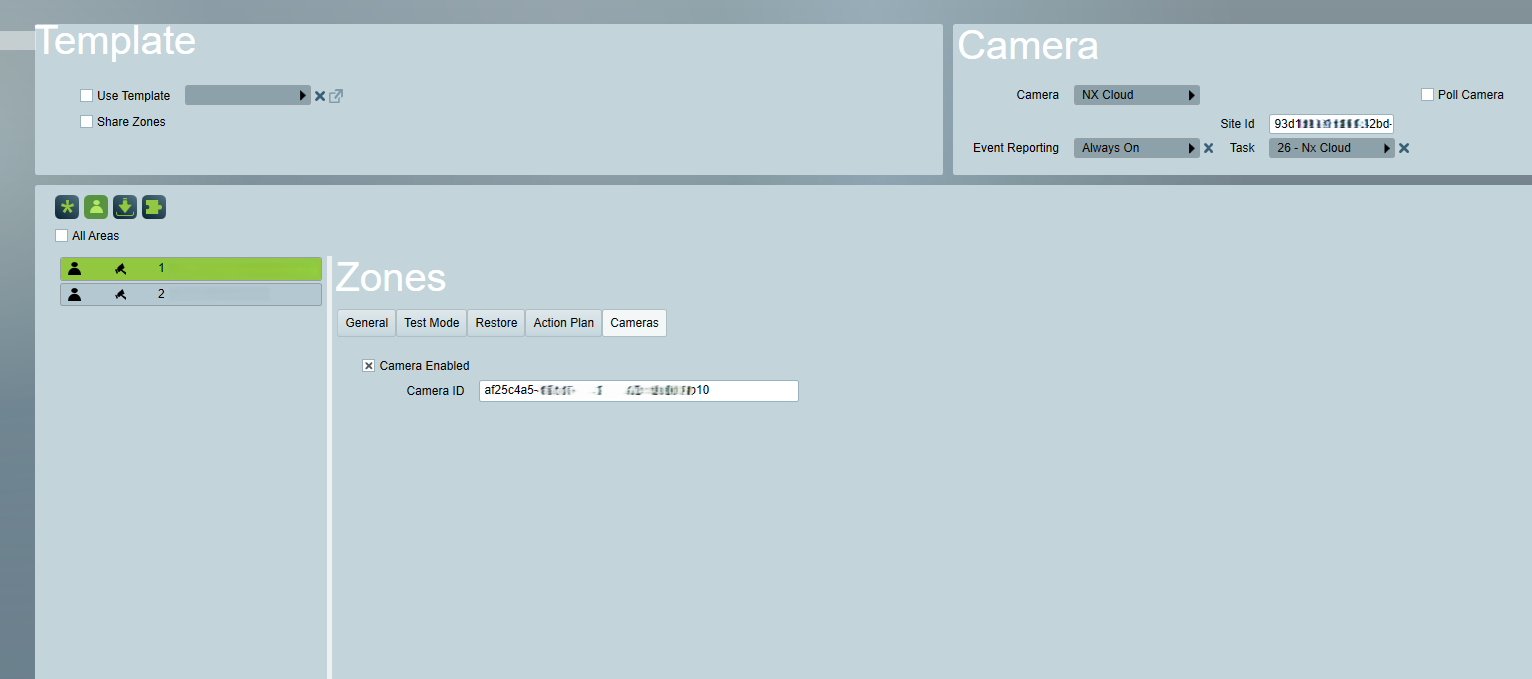
- Set the Camera Type option to Nx Cloud on the Zone Camera tab.
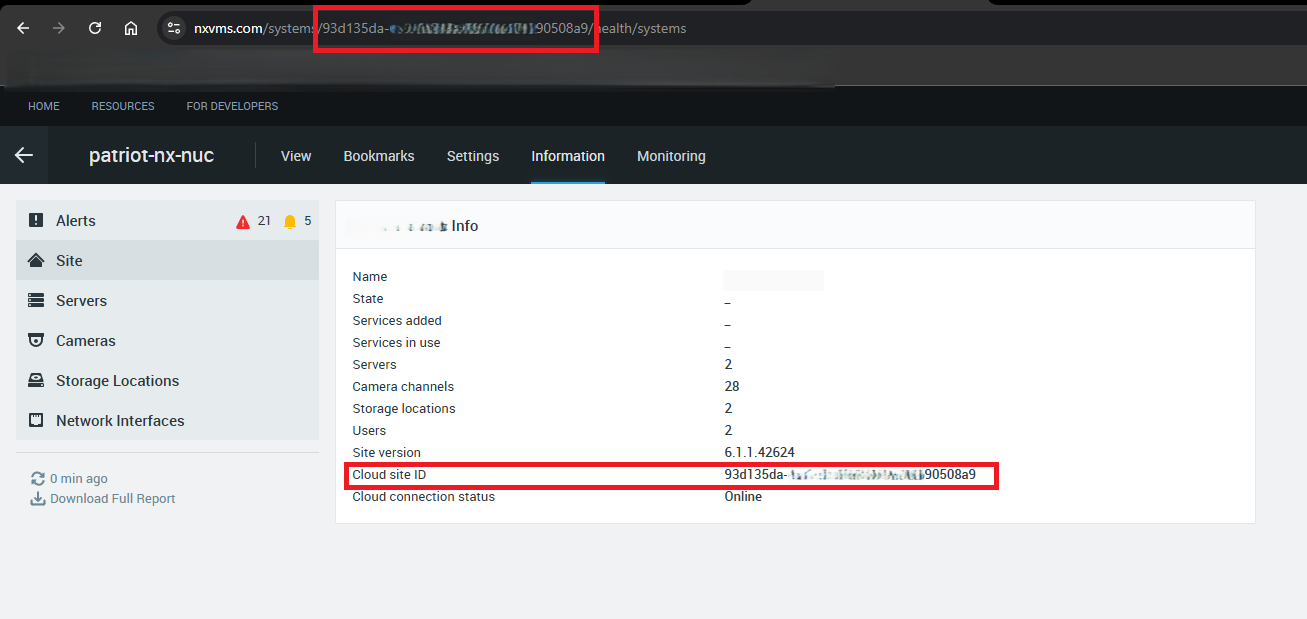
- Enter the Site Id which uniquely identifies a site. The Site Id can be found from the Nx Cloud web portal by navigating to Information → Site, as shown in the screenshot below.
- Select a zone to associate with a camera, then enter the Camera Id from Nx Witness. The Camera Id is Nx's internal identifier for a camera within a site.
- Both Site Id and Camera Id are required. You can find them using the Nx Witness desktop client or the Nx Cloud web portal.
When removing a site from Nx Cloud and re-adding it, the Site ID changes — please make sure to update the Site ID in the Patriot client accordingly.
Event Template and Signal Logging
You can download the Nx Cloud event types template from the Receivers And Format Templates page. For instructions on how to import this template, see How To Import Templates.
Patriot currently supports only generic events from Nx Witness. For example, motion detection and line-crossing events are logged as an Analytics Event in Patriot.
To receive events from Nx Witness, you need to create an event rule in the Nx Witness desktop client. Any action will work — the rule just needs to exist. The example below shows a Motion Detection event being captured and written to a log.
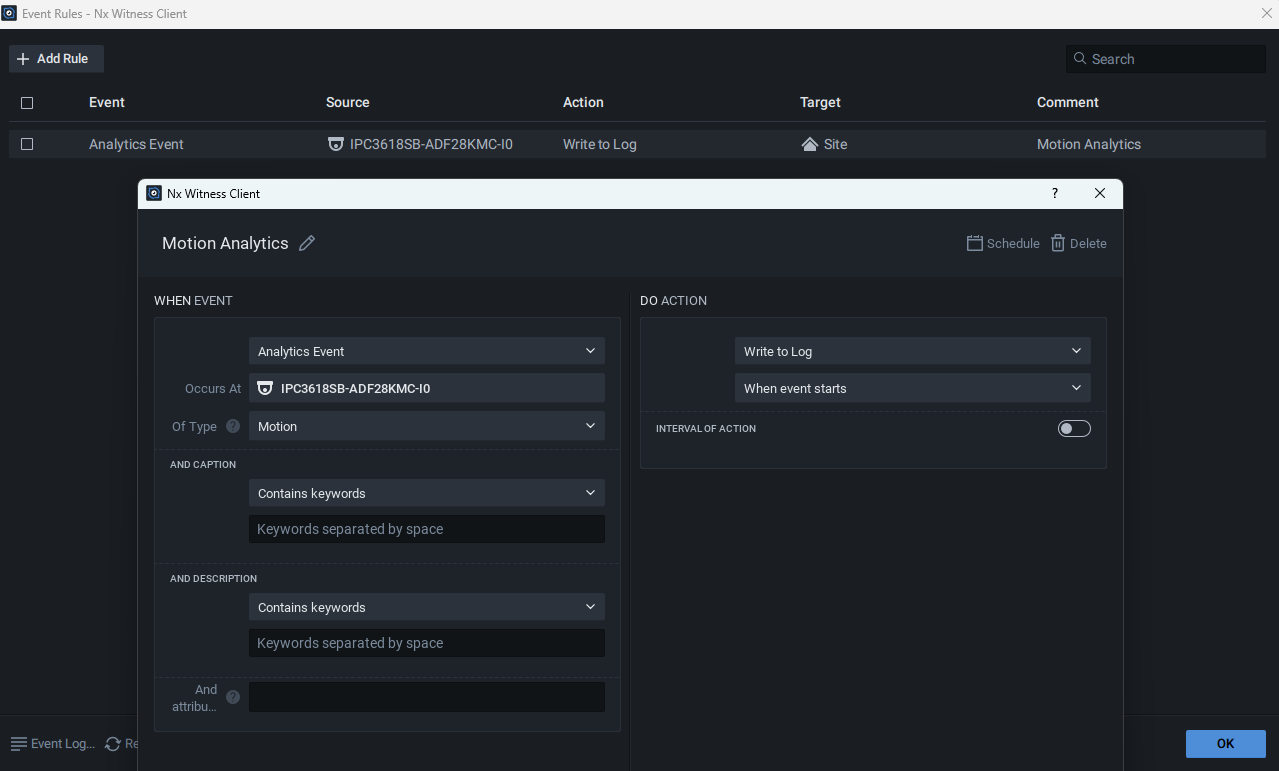
If you create multiple rules for the same event with different actions, the event may be logged more than once.
When an event is triggered on a camera, Patriot logs it to the correct Patriot client using the Camera Id configured on the zone. If the camera has not been set up on a zone, zone 0 is used.
Viewing Cameras
Nx Cloud cameras' stream can be viewed from either Patriot Client programme or ICA in the standard way. Please refer to Basic Camera Setup for details.
Audio, talkback and telemetry functions are not supported by Nx Cloud camera type yet.