Network Video Stream
A Network Video Stream camera allows users to view IP Cameras or DVR/NVR which support network video streaming within the Patriot alarm monitoring environment, Network Video Stream camera also supports viewing camera feed from ICA. Network Video Stream camera is an enhancement over RTSP Camera.
Most URL based network video streaming protocols like RTSP, HLS etc. are supported by this module. Individual IP Cameras installed at client sites can be associated with zones in the Patriot database. Video confirmation of activations is now possible quickly and seamlessly from within the Patriot environment.
Prerequisites
- The Network Video Stream Camera Module is required in order to support Network Video Stream Cameras within Patriot.
- FFmpeg needs to be installed on Patriot Task Server.
Task Setup
A Network Video Stream task is needed for streaming. Create a new task and choose Network Video Stream for the Task Type.
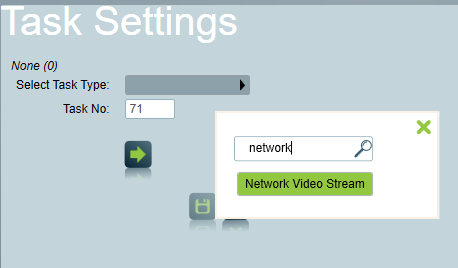
The task requires FFmpeg to run. For installing FFmpeg, please refer to FFmpeg Installation.
Client Setup
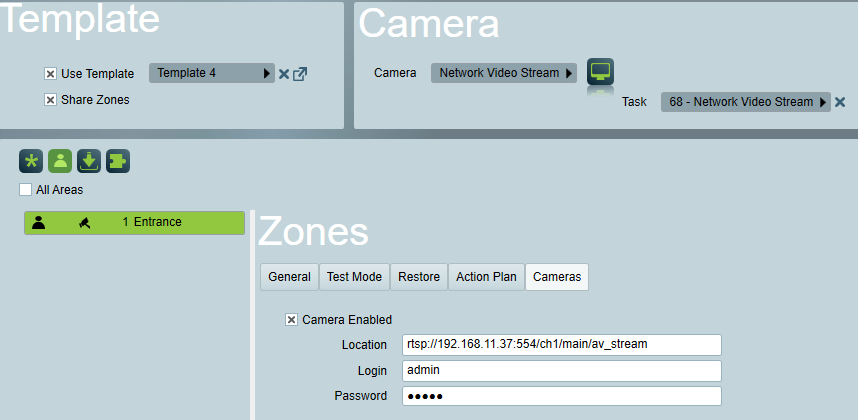
- In the Client Maintenance Screen, go to the Zones Tab. Set the Camera Type option to 'Network Video Stream'.
- Select the Network Video Stream task you just created.
- For each zone which has camera coverage, tick the 'Camera enabled' checkbox and enter the URL and login credentials for the camera.
Each camera equipped zone will now have a camera icon showing in the zones listing. Clicking on this camera icon will display the camera screen. Cameras can also be viewed by selecting the Camera tab directly at any time.
 When an alarm is received for a site equipped with cameras, a Camera Button will be displayed on the Attend screen. Clicking on this camera button will take the operator directly to the camera associated with the Zone which has originated the activation. Cameras can also be accessed during an attend by selecting the Cameras screen or from the Zones tab as before.