AXIS Camera Station Pro (ACS Pro)
Prerequisites
- A Patriot License with the Axis Module
- FFmpeg installed (only required for streaming).
Setting up ACS Pro
Full server configuration is beyond the scope of this document. Please refer to ACS Pro user manual when configuring a new installation. This section covers only the settings relevant to Patriot monitoring.
User Role and Permissions
To connect to an ACS Pro server from Patriot, a user account with the correct permissions is needed. ACS Pro doesn't have its own local users. It uses the user accounts or groups registered on the local computer or a Windows Active Directory. For details of adding users or groups, please refer to ACS Pro user manual.
The user account used by Patriot must be allowed to access the ACS Pro server from the network, even when Patriot Task Service is running on the same server. Make sure the user account has access to desired cameras.
Patriot requires Access alarms, tasks, and logs and Access data search permissions to poll system event logs from an ACS Pro server. The user's role needs to be either Operator or Administrator in ACS Pro's Security -> User permissions settings.
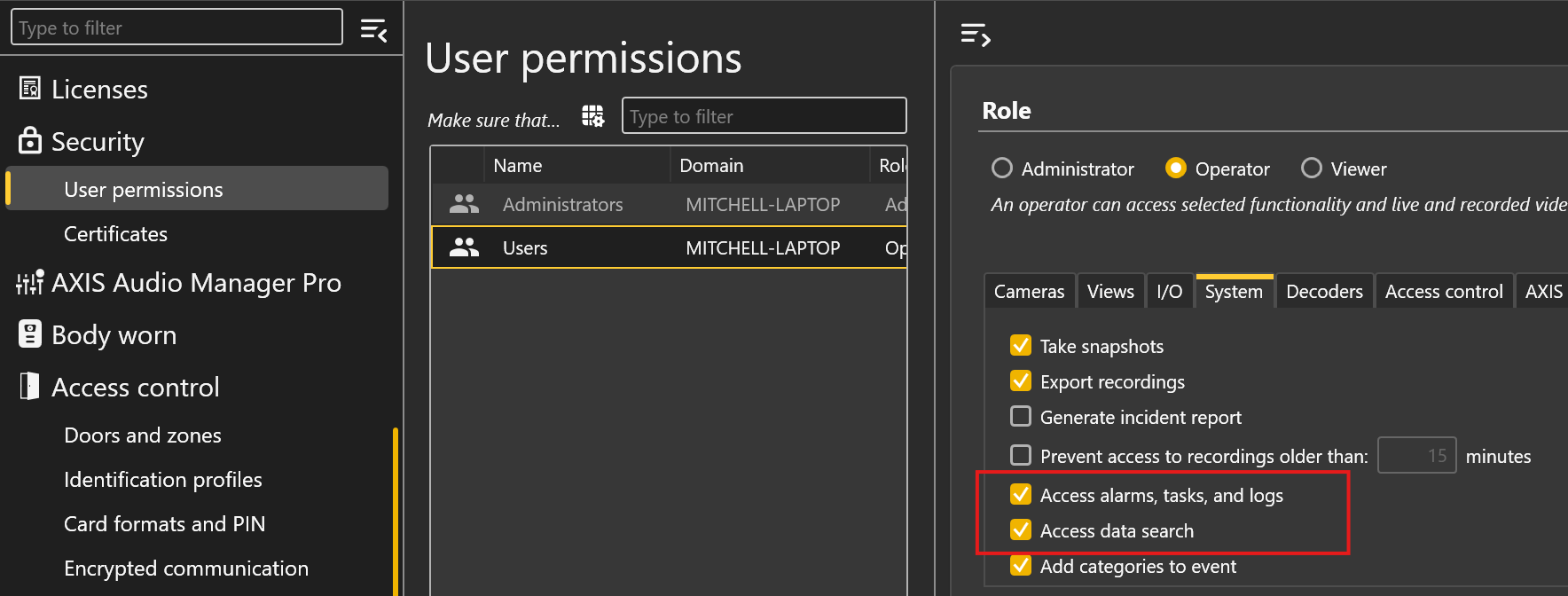
Configure IP Ports and Firewall
Patriot uses ACS API web server port to communicate with ACS Pro. On the ACS Pro server, open AXIS Service Control and check the Ports range settings in General tab. By default, the Ports range starts from 29200 and ACS API web server port will be 29204 in this case.
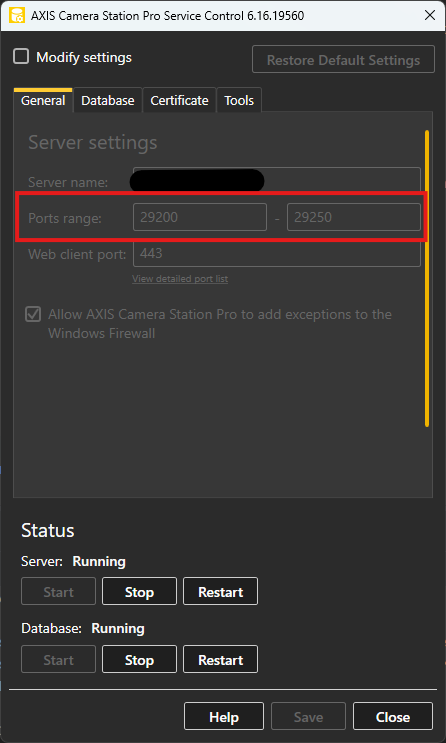
According to ACS Pro user manual, port numbers are calculated based on the starting port. When the starting port is changed, the rest of the ports change automatically. If an ACS Pro server is not using the default port settings, the ACS API web server port is supposed to be [starting port number] + 4. Please consult Axis if this doesn't work.
It is suggested to enable Allow AXIS Camera Station Pro to add exceptions to the Windows Firewall. Otherwise, corresponding ports need to be allowed on the Windows Firewall manually.
If there is a NAT, firewall, or similar between the ACS Pro server and Patriot server, configure the NAT or firewall to allow these ports to pass through.
Trust Server Certificate (Optional)
Patriot communicates with ACS Pro via HTTPS. It is recommended to export the certificate from ACS Pro and install it to Patriot Server's trusted root.
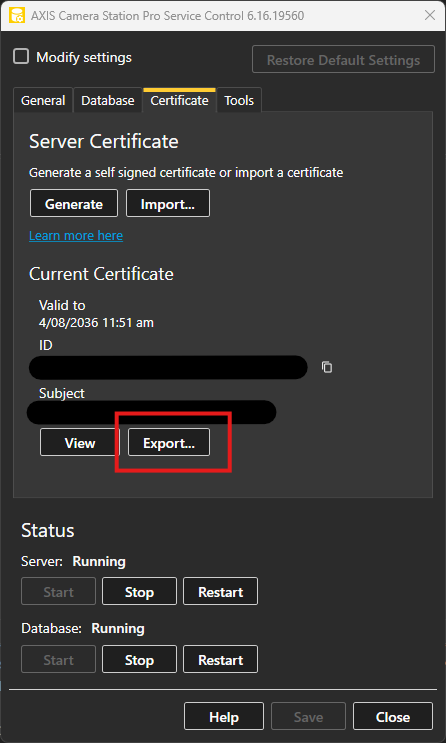
To export the certificate from ACS Pro, open AXIS Service Control and navigate to Certificate tab. Use the Export... button to export the certificate.
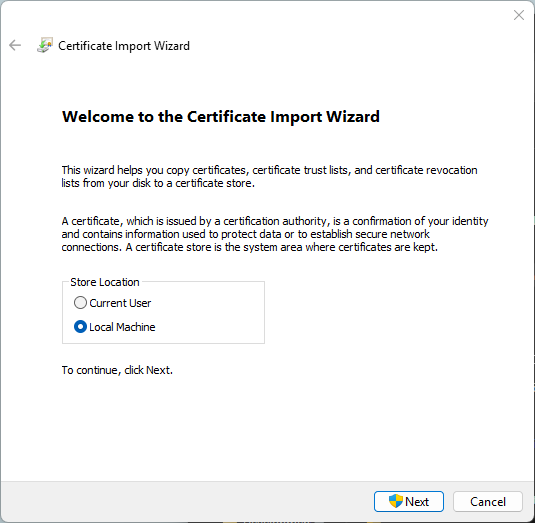
The exported certificate can then be installed to Patriot Server's trusted root. Make sure it is installed to Local Machine.
Patriot Task Setup
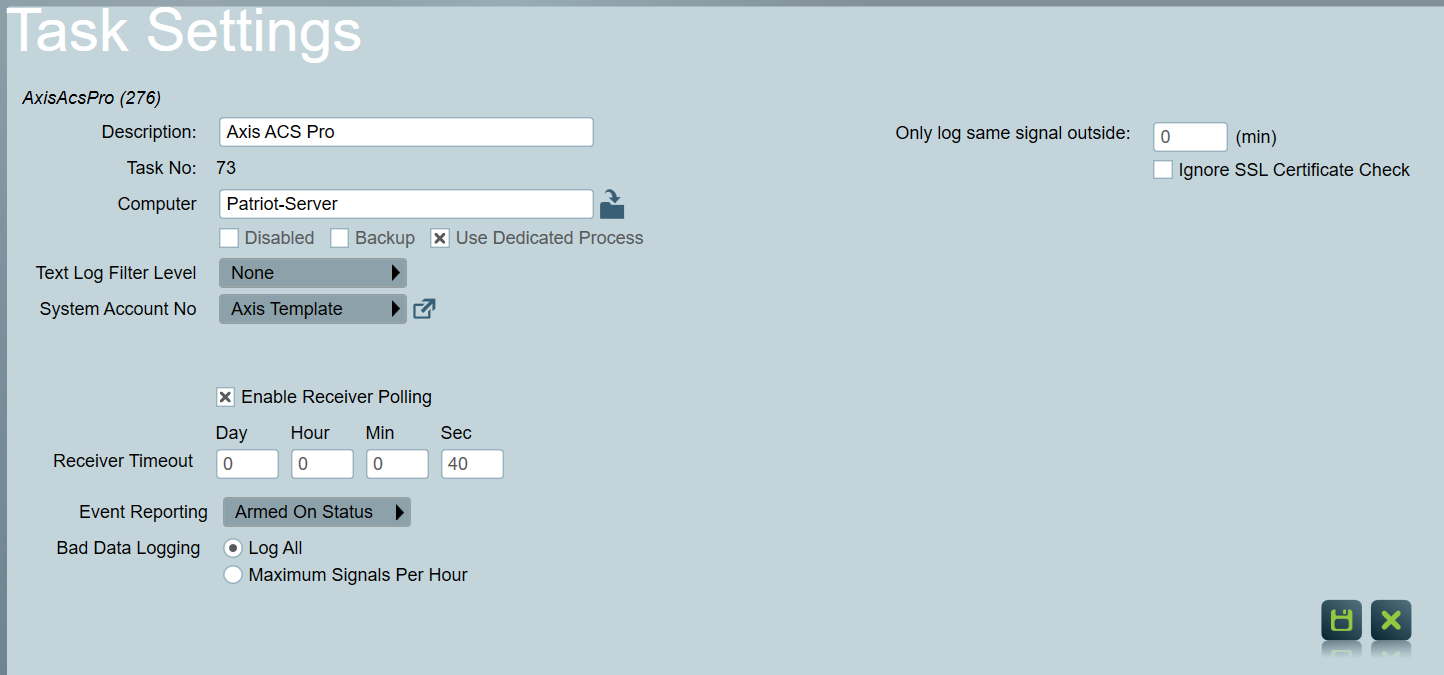
Create a new task, select Axis ACS Pro as the task type and save.
-
Only Log Same Signal outside: This setting prevents repeated signals from cluttering the signal history. This is useful if the same event is received repeatedly. The number can be set higher to reduce the amount of duplicated signals. When the number is set to 0, the task will log all the received system event logs.
-
Ignore SSL Certificate Check: Disabled by default for security. ACS Pro servers' certificates need to be installed to Patriot server's trusted root in this case. When enabled, Patriot will not verify ACS Pro servers' certificates and the certificates don't need to be installed on Patriot server.
-
Enable Receiver Polling: This setting can be used as an extra protection against Axis ACS Pro task stopping to poll event logs. When enabled, the Receiver Timeout setting can be entered. If the task fails to poll event logs within the Receiver Timeout setting, a Receiver Failure (65003) signal will be logged to the task's system account.
-
Event Reporting: Defines the default behaviour of events logging. This setting should be set to the behaviour required by the majority of clients being monitored through this task. The option can be overridden on a per client basis if required. Three options are available:
- Always On: events are always logged into Patriot.
- Armed On Status: events are only logged into Patriot when the client is armed.
- Always Off: events are never logged into Patriot.
If viewing camera stream is required, FFmpeg must be installed on Patriot Task server. For installing FFmpeg, please refer to FFmpeg Installation.
- Patriot currently supports only system event logs from ACS Pro. Supported event log types can be found in Axis Template.
Patriot Client Setup
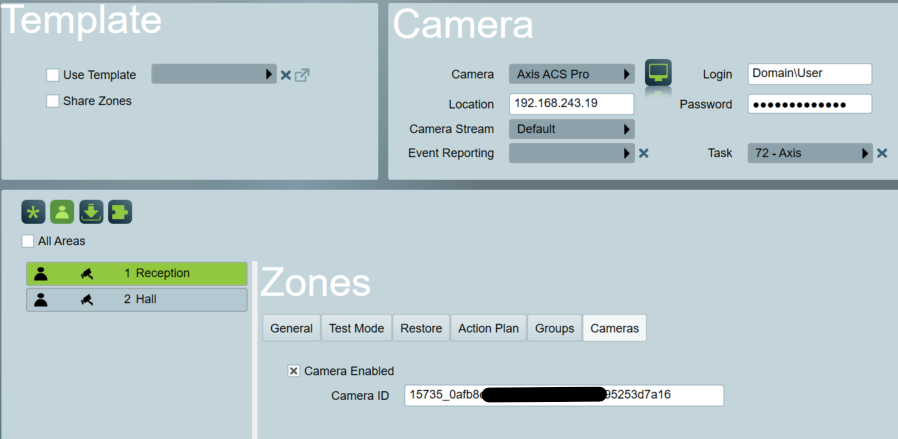
- Set the Camera Type option to Axis ACS Pro on the Zone Camera tab.
- Enter the ACS Pro server address into Location. Port number can be ignored if the ACS Pro server is using default ports. Otherwise, the ACS API web server port number needs to be included in the address. For example:
| Using Default Port (29204) | Custom Port (e.g. 30004) | |
|---|---|---|
| Using static IP Address | 158.123.1.15 | 158.123.1.15:30004 |
| Using domain name | domainname.com | domainname.com:30004 |
- Enter login credentials. If an Active Directory account is used, domain name must be included in the format of DomainName\Username.
- An Axis ACS Pro task must be selected. Patriot supports running multiple Axis ACS Pro tasks in dedicated processes. Different clients can use different Axis ACS Pro tasks.
- Switch to the client's Cameras tab. It will pop out a warning saying "No camera zones found. Please check camera zone settings.". It is expected because no camera has been enabled on a zone yet. Dismiss the warning and click on the
 button to view the information. It will show the list of cameras the user account has access to. Camera name, status and ID will be displayed for each camera in the list. The camera ID will be needed to associate a camera with a zone.
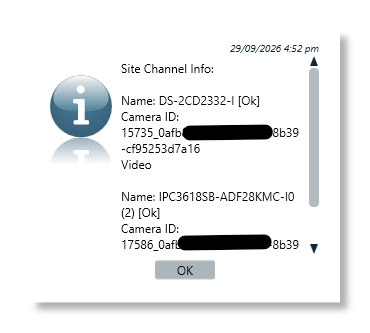
- Switch back to the client's Zones tab. Select a zone to associate with a camera. Enable camera in the zone's Cameras tab. Enter a Camera Id to associate the camera with the zone.
- Once all the zones are configured, re-open the client for the settings to take effect.
When Default camera stream is selected, Patriot will use the highest video profile available on the selected camera. When SubStream is selected, Patriot will use the lowest video profile.
Viewing Cameras
Cameras' stream from ACS Pro can be viewed from either Patriot Client programme or ICA in the standard way. Please refer to Basic Camera Setup for details.
Audio, talkback and telemetry functions are not supported by Axis ACS Pro camera type yet.