External Reports
External reports allow Patriot to integrate with third-party reporting tools or custom executables to generate reports that fall outside the built-in RDLC reporting engine. Rather than producing output immediately, an external report is queued for background processing and the result is delivered to the user once complete.
How External Reports Work
When a user runs an external report:
- The report run is added to the queue
- The Reports Task assigned to the report picks it up — or if no task is assigned, any available Reports Task will collect it
- The Reports Task runs the external executable using the matching entry in the capabilities file
- The completed output file is delivered to the Data Service, and the ICA or desktop client downloads it automatically
- If an error occurs — either running the report or with its configuration — an error is returned to the user
External reports do not use the standard output format selector (PDF, Excel, CSV, etc.). The output format is determined entirely by the external executable.
Prerequisites
External reports are processed by the Reports Task. This task must be running for external reports to execute.
If you are setting up external reports for the first time, ensure a Reports Task is configured and running. See Preset Reporting — Creating a task for Running Preset Reports for instructions on setting up a Reports Task.
Configuring an External Report
External reports are configured in two places: a report record in the Patriot desktop client that defines what the report is and what filters it exposes, and a capabilities file on the server that defines how the external executable is invoked.
1. Configure the Capabilities File
The capabilities file (ReportCapabilities.json) is located on the server running the Reports Task, in the Task Service installation directory (default: C:\Program Files (x86)\Patriot Systems\Patriot Task Service). Each entry maps an External Report Tag to the executable that should be run.
| Field | Description |
|---|---|
Command | Full path to the executable to run |
CommandArguments | Command-line arguments passed to the executable. Supports Handlebars templates — see Template Variables below |
WorkingDirectory | Working directory for the process. Leave empty to use the directory containing the executable |
OutputPattern | Glob pattern used to locate the output file after the executable exits (e.g. *.csv, report-*.pdf). Also supports Handlebars templates |
Examples
Date range report — passes a start and end date to a billing tool and collects the CSV output:
{
  "CustomBillingReport": {
    "Command": "C:\\Reports\\BillingTool.exe",
    "CommandArguments": "--startDate {{Options.StartDate}} --endDate {{Options.EndDate}} --output {{Options.OutputDirectory}}",
    "WorkingDirectory": "C:\\Reports",
    "OutputPattern": "*.csv"
  }
}
Single-record report — uses SelectedRecordId to run a statement for one specific client:
{
  "ClientStatementReport": {
    "Command": "C:\\Reports\\StatementTool.exe",
    "CommandArguments": "--clientId {{Options.SelectedRecordId}} --output {{Options.OutputDirectory}}",
    "WorkingDirectory": "C:\\Reports",
    "OutputPattern": "*.pdf"
  }
}
Client grouping report — uses join to pass multiple grouping IDs as a comma-separated list, and uses a Handlebars expression in OutputPattern to produce a dated filename:
{
  "MonthlyGroupingReport": {
    "Command": "C:\\Reports\\GroupingReport.exe",
    "CommandArguments": "--start {{Options.StartDate}} --end {{Options.EndDate}} --groups {{join ',' Options.ClientGrouping}} --output {{Options.OutputDirectory}}",
    "WorkingDirectory": "C:\\Reports",
    "OutputPattern": "report_{{Options.StartDate}}-*.xlsx"
  }
}
Template Variables
The CommandArguments field supports Handlebars templates. The available variables are listed under ExternalReportOptions.
The executable must write its output to the {{Options.OutputDirectory}} path. After the process exits, Patriot uses the OutputPattern glob to find the output file within that directory.
Environment Variables
Patriot passes the following environment variables to the external process:
| Variable | Value |
|---|---|
PATRIOT_URL | Base URL of the ICA server |
These allow the external executable to make authenticated calls back to the Patriot API if needed.
PATRIOT_URL will be empty unless the ICA Address setting is configured in Patriot.
2. Create the Report Record
In the Patriot desktop client, navigate to Reports > Settings > Report Names to add or edit a report record.
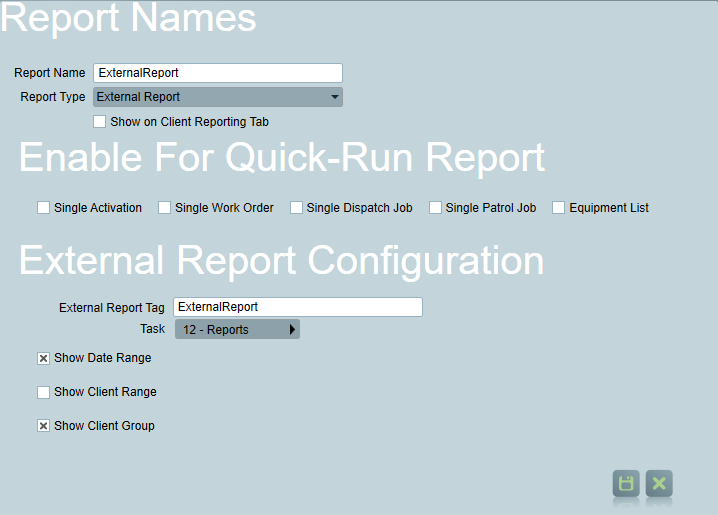
Set the Report Type to External Report or External Report By User.
- External Report — a standard external report with no mandatory user context.
- External Report By User — runs the report in the context of a selected user or user group.
Set the External Report Tag to match the key defined in the ReportCapabilities.json file exactly (e.g. CustomBillingReport).
Set the Task field to the Reports Task running on the server where the ReportCapabilities.json entry is configured. If only one Reports Task is running, this field can be left blank. When multiple Report Tasks are running on different servers, it is important that both the correct task is assigned and the tag matches an entry in that task's capabilities file — a mismatch between either will cause the report to fail.
Use the External Report Config flags to control which filter fields are shown when a user runs the report:
| Configuration Flag | Run Report Interface | Handlebars Field(s) | Description |
|---|---|---|---|
| Date Range | Shows a start date & time and end date & time selector | {{Options.StartDate}}, {{Options.EndDate}} | Start and end date & time for the period of the report. The report should only return data from within this period. |
| By Client Range | Shows first client and last client fields | {{Options.FirstClient}}, {{Options.LastClient}} | Filter the report to a range of clients. |
| By Client Grouping | Shows a client grouping selector | {{Options.ClientGrouping}} | Filter the report to a selected client grouping. |
Multiple flags can be combined. A report with no flags set will show no filter fields.
The By User Filter flag is automatically enabled for the Report type External Report By User. All reports of this type can be filtered by a selected user or user grouping via {{Options.UserId}} and {{Options.UserGroupId}}.
Quick Run flags allow the report to be triggered directly from a record page rather than from the Reports menu:
| Configuration Flag | Run Report Interface | Handlebars Field(s) | Description |
|---|---|---|---|
| Single Activation | Adds a Run button to the Activation page | {{Options.SelectedRecordId}}, {{Options.FirstClient}}, {{Options.LastClient}} | Run the report for a specific activation. |
| Single Work Order | Adds a Run button to the Work Order page | {{Options.SelectedRecordId}} | Run the report for a specific work order. |
| Single Dispatch Job | Adds a Run button to the Dispatch Job page | {{Options.SelectedRecordId}} | Run the report for a specific dispatch job. |
| Single Patrol Job | Adds a Run button to the Patrol Job page | {{Options.SelectedRecordId}} | Run the report for a specific patrol job. |
| Equipment List | Adds a Run button to the Equipment page | {{Options.FirstClient}}, {{Options.LastClient}} | Run the report for for an Equipment List. |
Running an External Report
External reports can be run from either the Patriot desktop client or ICA. In both cases the report is queued and processed in the background by the Reports Task.
Not all filter options are shown for every external report. The available filters depend on how the report has been configured — see Configuring an External Report below.
Running from the Desktop Client
In the Patriot desktop client, run an external report the same way as any other preset report — navigate to Reports, select the report, fill in the filter fields, and click Run.
The output format selector is not shown for external reports — the format is determined entirely by the external executable.
Once the report is queued, the desktop client polls the server for completion. When the report finishes, the output file is automatically downloaded to the Documents\Patriot Reports folder on the local machine. If the file format can be opened directly (.pdf, .csv, .xls, .xlsx, .doc, .docx, .txt) and Print Preview is enabled, it will open automatically.
After the download completes, a prompt is shown offering to open the output folder or email the file (if the Email module is licensed).
If running an External Report By User for a user grouping, the desktop client will download each report file as it completes.
The polling interval and polling timeout can be configured to support longer running reports via the ExternalReportTimeout and ExternalReportPollingInterval settings in Global Settings.
Running from ICA
In ICA, navigate to the report and submit it. The report is queued immediately and ICA returns while the Reports Task processes it in the background. When complete, the file will download automatically into your downloads folder.
Output Delivery
The delivery method for an external report is determined by how the report is triggered:
| Trigger | Delivery |
|---|---|
| Manual run via desktop client | Output file is downloaded to Documents\Patriot Reports on the local machine |
| Manual run via ICA | Output file is downloaded automatically from the browser |
| Email output type | Output file is emailed to the specified address via the email module |
| Scheduled/automatic | Output file is written to the configured output file path on disk |
For ICA downloads, the cached file is only available for a short window after the report completes. If the browser session is closed before the download starts, the file may no longer be available.
Troubleshooting
If an external report fails, the error is recorded against the pending report record. Common causes include:
- Tag not found in capabilities file — the External Report Tag on the report record does not match any entry in
ReportCapabilities.json. Check for typos and confirm the file has been saved in the correct location. - Executable not found or failed to start — verify the
Commandpath is correct and the executable is accessible from the server running the Reports Task. - Non-zero exit code — the external executable exited with an error. Check the executable's own logs for details.
- Output file not found — the executable ran successfully but no file matching
OutputPatternwas found in the output directory. Confirm the executable is writing to{{Options.OutputDirectory}}and that the pattern matches the filename it produces. - Multiple files match
OutputPattern— only the first matched file is captured. Ensure the executable writes a single output file, or make theOutputPatternspecific enough to match exactly one file. - Timeout (Reports Task) — the executable ran longer than the Reports Task timeout. Check the
PresetReportTimeoutsetting in Global Settings and consider whether it needs to be increased for long-running reports. - Timeout (desktop client / ICA) — the client stopped waiting before the report completed. The client-side timeout is controlled by
ExternalReportTimeoutin Global Settings (default 10 minutes). Increase this value if reports regularly take longer than the current limit.
See also Reports Troubleshooting.