Zone Groupings
Zone Groupings let you collect individual zones from across many client accounts into a single named group.
Zone Groupings are created and maintained from the Maintenance > Clients > Zone Groupings screen.
A zone can belong to any number of Zone Groupings, and a Zone Grouping can contain zones belonging to any number of clients.
Security
Access to this page is controlled by the Zone Groupings security right, found under the Maintenance section of the operator's security group. See Operator Security Groups for more information.
Creating and editing a Zone Grouping
The Zone Groupings screen lists all existing groups. Select a group to view or edit it, or use the Insert button to add a new one.
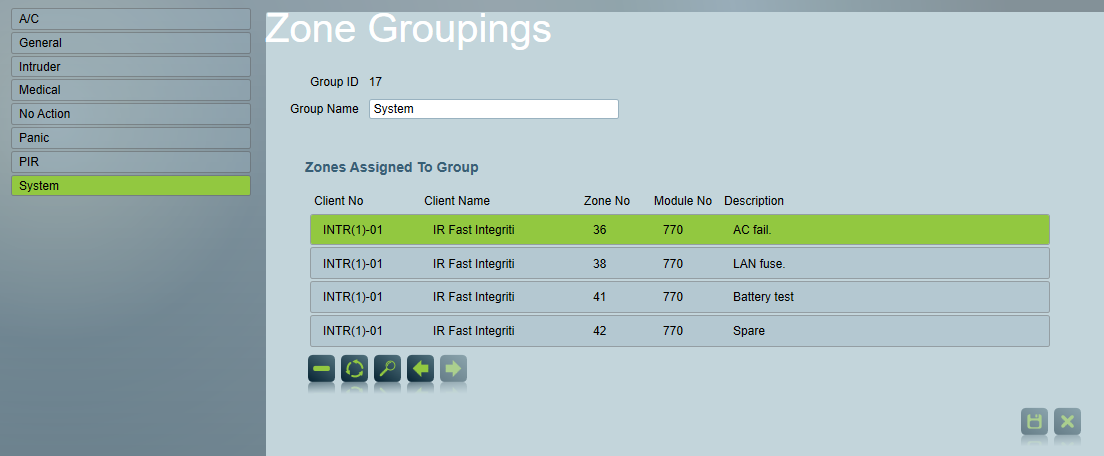
Each Zone Grouping has the following fields:
- Group ID - A read only identifier assigned by Patriot when the group is first saved.
- Group Name - A description of up to 100 characters.
Click Save to store your changes.
If another workstation has changed or deleted the same Zone Grouping since you loaded it, a warning is displayed and the record is reloaded so you can review the current values before saving again.
Zones Assigned To Group
Once a Zone Grouping has been saved, the Zones Assigned To Group list shows every zone currently assigned to it.
The list is a table with the following columns:
- Client No - The number of the client that owns the zone.
- Client Name - The name of that client.
- Zone No and Module No - The zone and module numbers of the zone.
- Description - The zone description.
Zones are listed in client number, module number, then zone number order. Use the previous and next buttons below the list to move through the pages, or the refresh button to reload the current page
Double click a zone in the list to open that client and jump straight to the zone on the Zones tab.
To remove a zone from the group, select it in the Zones Assigned To Group list and click the Delete button, then confirm the deletion when prompted.
Searching zones in a Zone Grouping
The search button below the list opens a popup for narrowing the list down to the zones you are interested in.
The following search fields are available:
- Client - Matches on client number or client name.
- Description - Matches any zone description containing the text entered.
- Zone No - Matches the zone number exactly.
- Module No - Matches the module number exactly.
Any combination of fields can be used. Where more than one field is entered, only zones matching all of them are listed.
Press Enter or click the search button in the popup to run the search. The results are displayed in the Zones Assigned To Group list, starting again at the first page, and the previous and next buttons page through the matching zones in the same way as the full list.
The search only applies to the group currently being viewed.
The clear button empties all of the search fields and reloads the full list of assigned zones.
Assigning zones to a Zone Grouping
Zones are assigned to Zone Groupings from the Groups tab of the zone record on the client's Zones tab.
Using a Zone Grouping in Action Plan Rules
A Zone Grouping can be used to redirect events to an alternate Action Plan. On the Rules tab of Action Plan maintenance.
This lets a set of zones be handled differently without having to assign an action plan to each zone individually.
Deleting a Zone Grouping
To delete a Zone Grouping, select it in the list and click the Delete button.
Deleting a group will unassign it from all zones.
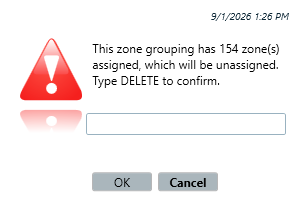
Deleting a Zone Grouping never deletes the zones themselves, only their membership of the group.