Installing Patriot Updates
Patriot software updates can be downloaded from the Patriot Support Portal.
If you are using Patriot in a Cluster Environment, please see the Update Patriot Cluster documentation
Preparation
- Download the Patriot Auto-Updater utility onto the Patriot server
- To enable workstation auto-update, place a copy of the auto-updater tool in the Data Service install directory on the data service server
- If you have any additional Task Service servers, copy the auto-updater to these servers
The default installation folder is C:\Program Files\Patriot Systems (x86)\Patriot Data Service, or C:\Program Files\Patriot Systems\Patriot Data Service on 32bit machines.
Procedure
Please follow the update procedure in the specified order:
- Log out of Patriot on all workstations
- If you have any additional Task Service servers, stop the Task Service using the Patriot configurator on each server
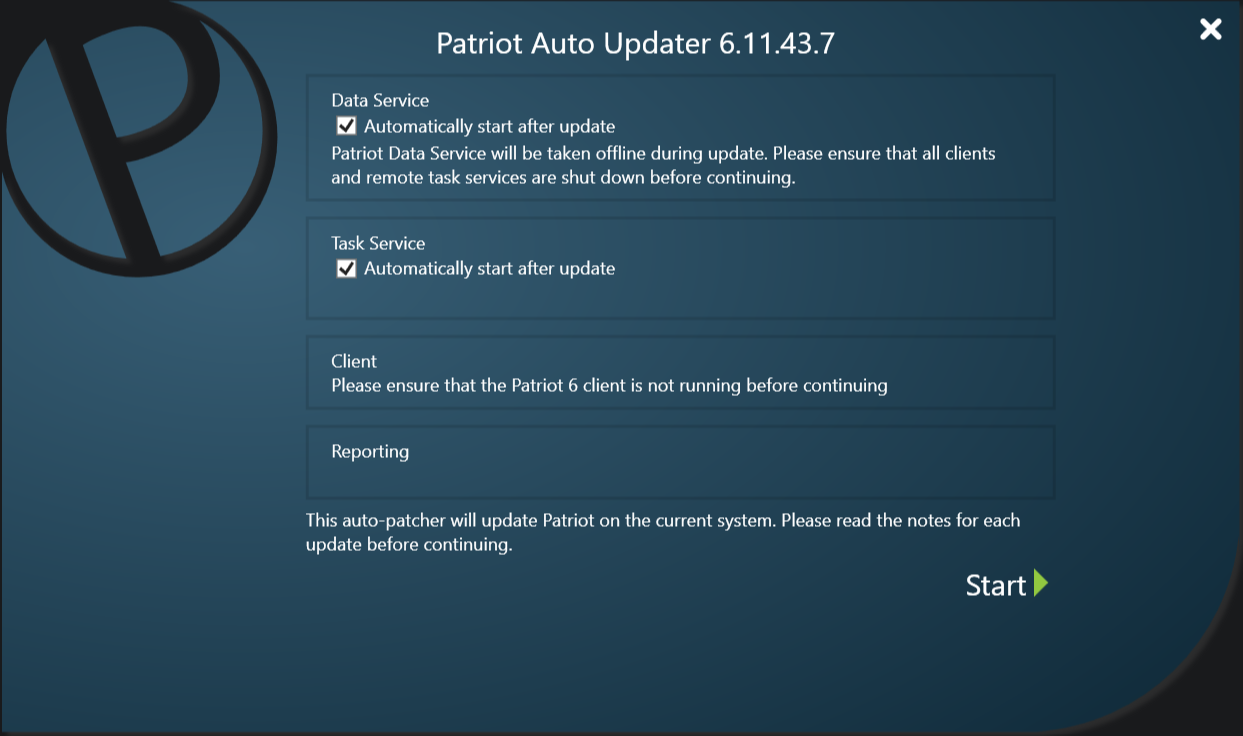
- Run the Patriot auto-updater tool on the Data Service server. Follow the wizard and allow it to apply the required updates
- Run the Patriot auto-updater tool on any additional Task Service servers. Enable automatic service start, then follow the wizard and allow it to apply the required updates.
- Start Patriot on operator workstations. Patriot will detect the version mismatch, and automatically download + install the new version
You can use the System → Tasks → Network Diagram tool to check all workstations have disconnected
Downgrading
It is not recommended to downgrade your version of Patriot once patched. Reverting to an older patch can cause instability issues as the database is not automatically downgraded when applying earlier patches. If you believe there is a critical reason why you need to downgrade, please contact Patriot support staff for assistance before applying an older patch to a live system.